
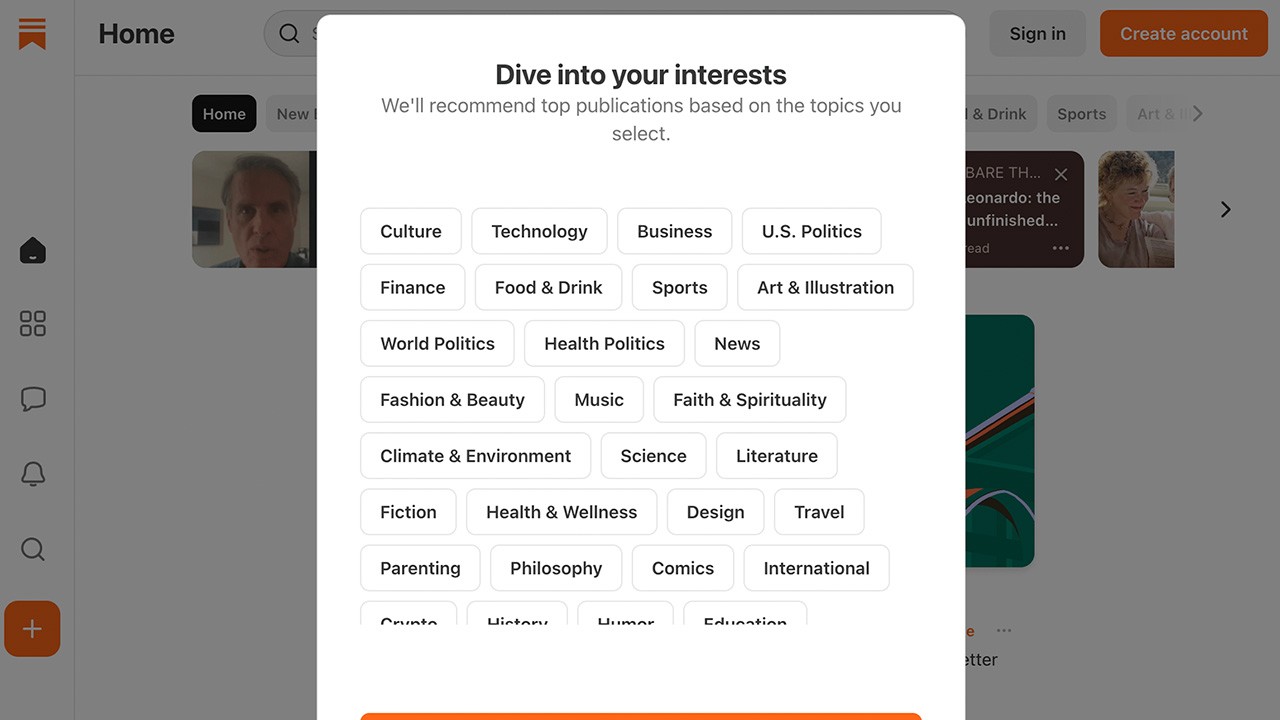
Substack is a platform or social network, depending on how you look at it, whose capabilities include the option to easily create and manage a newsletter. It has more things besides the newsletter: it features a microblogging network in the style of X (formerly Twitter), it also has a blog—well, actually, the newsletter system is based on this, you publish on the blog and it reaches list members via email—it has chat, vertical videos, and what I consider to be its most interesting feature: its internal discovery system.
You can easily find content thanks to its recommendations, plus you can easily network with other creators—another point for Substack! It still has a ways to go, but it’s moving full speed ahead, so if you hadn’t heard of it yet, you’ll soon start hearing a lot more about it.
One of Substack’s particularities that also makes it very interesting is that it attracts reading users, precisely what a network of this style needs, so you have everything you need; you just have to get started creating your content.
If you are one of those who have decided to jump on the bandwagon and write within Substack, you will first need to create a user account. It’s very simple: go to their website Substack.com and on the right side of the header you can create one, enter your email, it sends you a code that you must enter, and you’re done. Once your account is created, go to create a publication so it recognizes you as a creator, or log out and log back in if it doesn’t recognize you.
Now click on Dashboard to access the settings for your space on Substack. From there you can configure all aspects of your Newsletter, Blog, Chat, and social network. It has a ton of configurable options; it’s great because you can customize the format of your blog and newsletter to the max, just like any other mailing platform.
Remember to customize your subdomain on Substack so you can have something that matches the name of your newsletter, since by default Substack will use your username, and in most cases that won’t be the same one you use for your list.
In the channel video I go over all the options to configure, at least everything essential so you can launch your newsletter quickly and without overthinking it. Don’t forget to rate it if you use it 😉.