
The first time, to put the Apple logo on the iPhone keyboard, you need the logo, so go ahead and copy it from here .
Now go into the iPhone settings, and under “General” scroll down to where it says “Keyboard”, and once inside select “Text Replacement”.
We are going to add a custom option, for this tap on the “+” and in the “Phrase” field paste the Apple apple symbol. Then right below, in the “Shortcut” field type the word you want to identify the entry, for example I put “logoapple”, a bit long but that way I don’t forget it, tap save and it’s created.
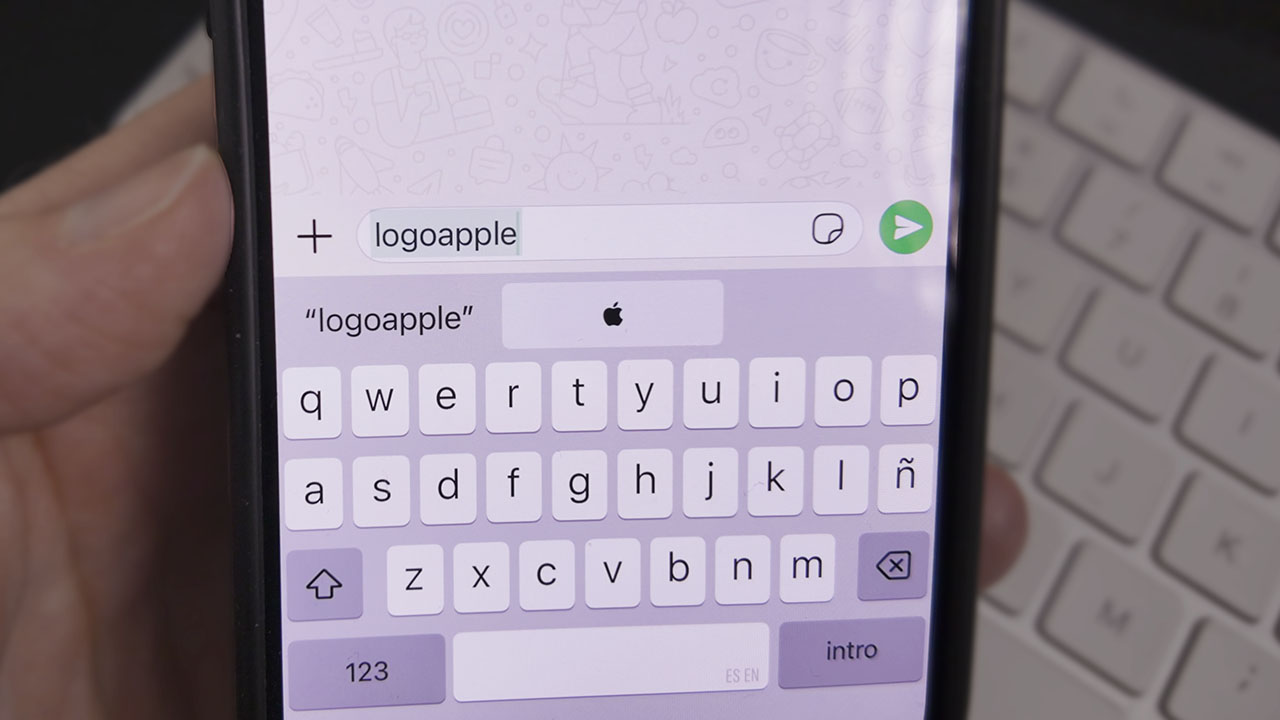
Now if you go into any app and open the keyboard, start typing the word we used as an identifier, in my case “logoapple” you will see that right above it the Apple icon will appear.
It’s a very simple but useful trick, and it can be used to put many icons, words, phrases or even Ascii texts.