
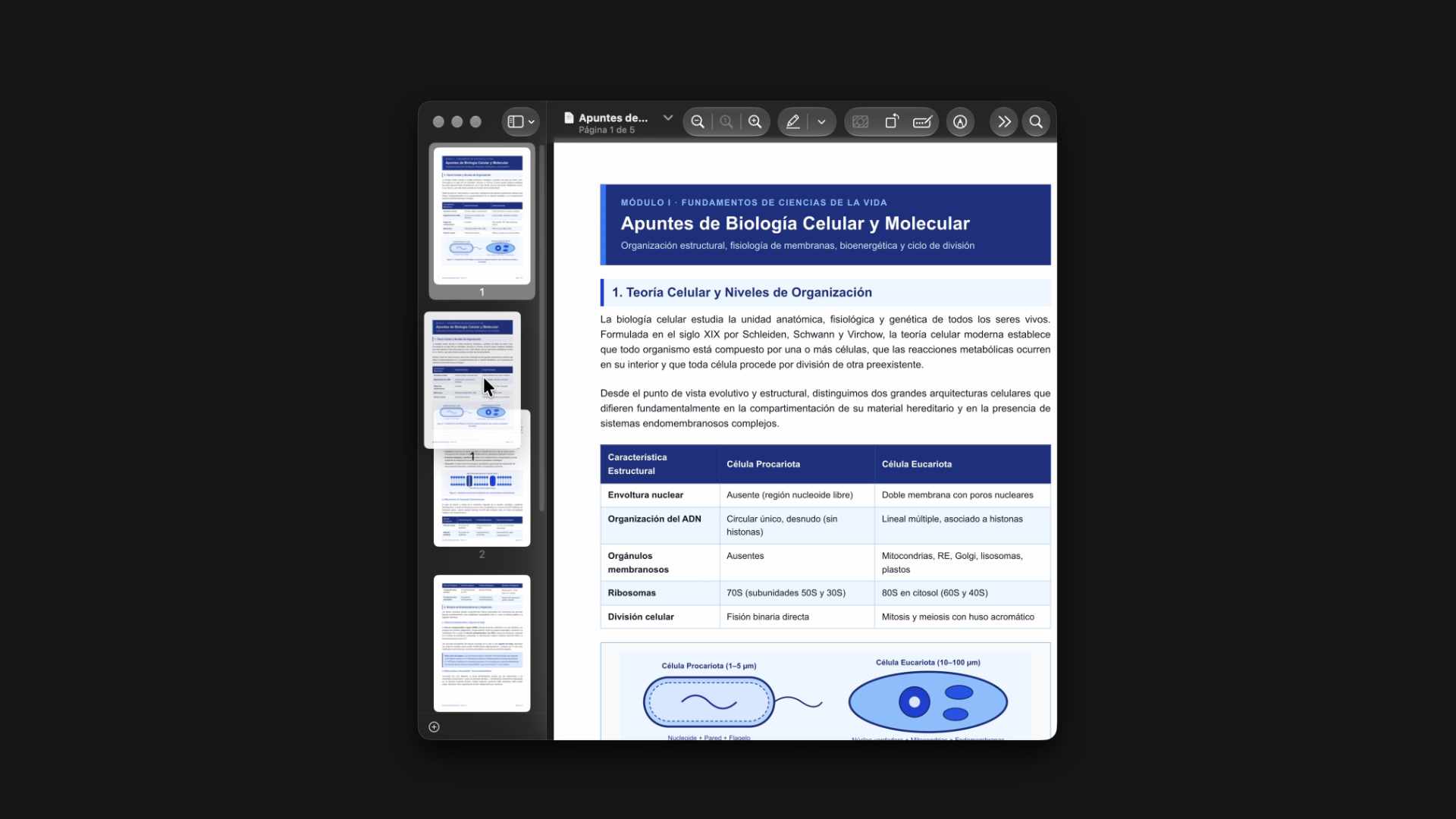
When you need to combine pages from several PDFs, reorder their pages, or simply delete some of their pages, you can do it directly on the Mac without installing anything.
To do this, you just have to open your PDFs with the “Preview” application.
To arrange the pages, simply select them in the thumbnails on the left and drag them wherever you want to change the order.
You can select several at once by holding down “Shift” (the capitalization key) and clicking on the first and last page if they are consecutive. Or by pressing the “Command” key and, without releasing it, clicking on the pages you want to add to the selection.
To delete specific pages, once selected, go to the “Edit” menu and select the “Delete” option; this will only delete the pages from the current selection.
And finally, to combine several PDFs or some of their pages, open both PDF documents in separate “Preview” windows and select and drag the pages you want from one document to the other to combine them.
Remember that when combining PDF documents, to avoid overwriting the original file, it is best to create a duplicate file first and work on that duplicate. To create a duplicate file, you simply need to go to the file menu and select the “Duplicate” option.
Leave a reply related to “Organize, delete, or combine pages of a PDF on Mac”
(Your comment must be strictly related to the topic of the post. Unrelated comments will be removed.)