
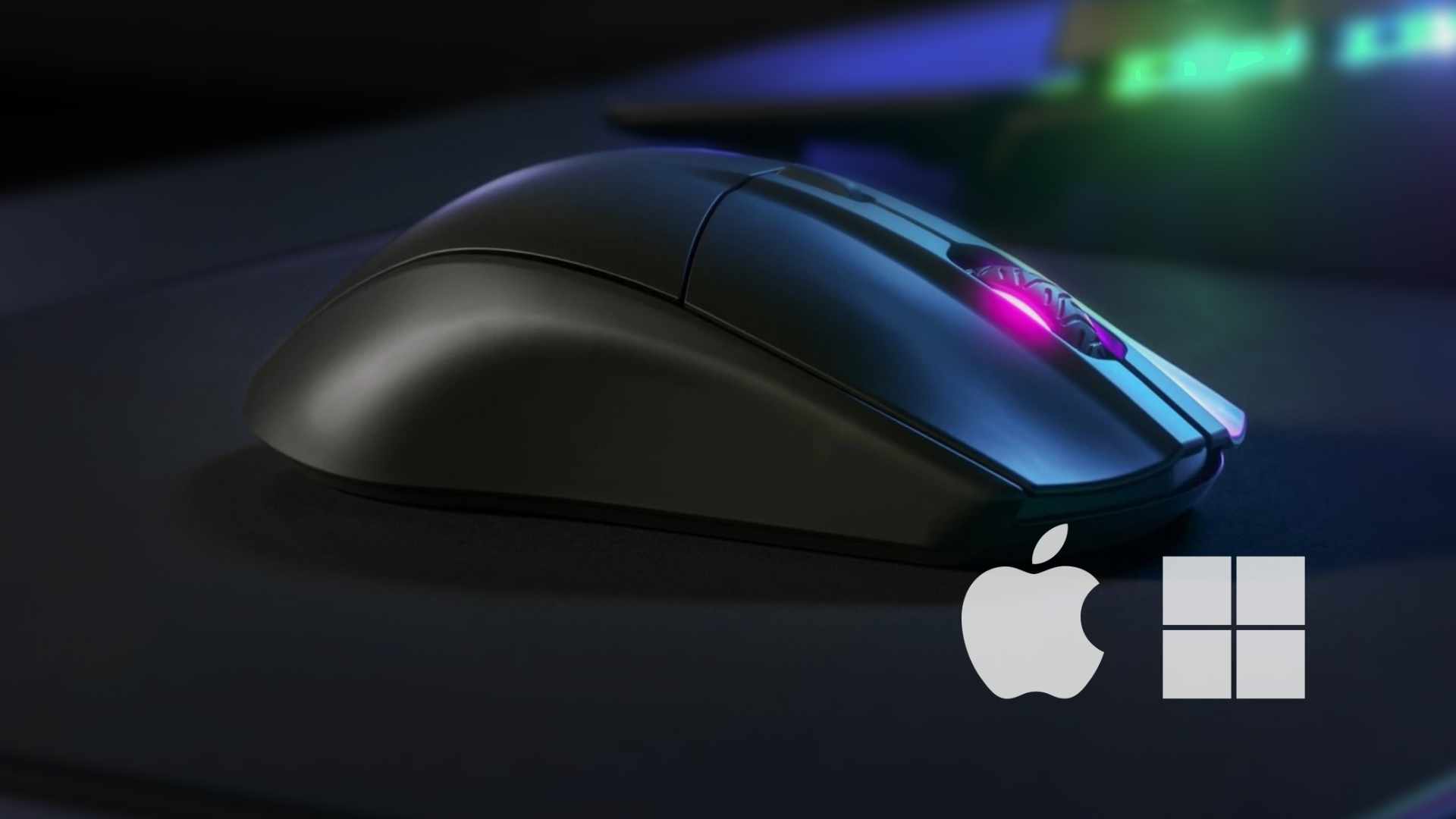
If you use a Mac and a PC daily and are sick of having to use a separate mouse for each computer, or you are simply looking to upgrade your mouse to something that makes more sense for how you use it, keep reading.
A few days ago I was talking about my frustrations in going from having two keyboards on my desk to just one for working with a Mac and a PC. Because every day for one reason or another I have to work on both systems, and if not, at the very least I will have to use the PC when it’s time to game.
A single mouse, not two
Most of the time I use the Magic Trackpad on the Mac, partly because I prefer it, but sometimes I miss having a mouse. And I refuse to have two mice, because precisely what I’m trying to do is clear the desk of clutter.
The problem with my previous mouse
And I do have a mouse, but it’s the one connected to the PC. It’s Bluetooth and 2.4Ghz wireless, but it has a very, very serious flaw, and I only realized this after buying it.
The pain of constantly switching
Every time I want to use the mouse on it, I am forced to:
- re-pair via Bluetooth,
- waste time,
- remember the manufacturer’s name in frustration every time I have to do it.
Yes, it turns out that even though this mouse has both connection methods, it is incapable of connecting to two devices without one of them losing its pairing. Come on, it’s useless for two computers!
So it’s time for a new mouse, but this time one that meets all my needs based on how I’m going to use it.
True multi-device
Stable Bluetooth for Mac
For starters, it needs Bluetooth to connect to the Mac, simply because the MacBook Air has limited USB ports, so I don’t want to be unplugging something else every time I want to take my laptop with me.
Low latency for PC and gaming
On the other hand, I’m going to use the mouse for gaming, so it preferably needs to be wireless with low latency, plus USB for those moments when I don’t want to risk it.
Quick switching between devices
It’s already clear that I need a mouse to use with both the Mac and the PC, and that it must have a different connection type for each computer. Now, what it needs to support is hot-switching.
I shouldn’t have to shut down one computer just to use it on the other, so it must somehow offer a way to select the connection mode right from the mouse, allowing me to choose which computer to use it with easily and quickly.
Stable connection without dropouts
Needless to say, the connections need to be stable—no disconnecting every two seconds, only for it to catch you in the middle of a match and drop the connection at the worst possible moment.
Requirements for PC gaming
Quick response and low latency
It must have gaming features, because that’s usually the hardest part to get right.
Dedicated Wi-Fi or USB cable
That’s why it should use 2.4GHz Wi-Fi or similar, or a USB cable, but always with low latency. There are mice with these connections that suffer from dropped signals or lag so bad that you move it and eight hours later it moves in the game—so watch out for this.
Gaming feel and ergonomics
This is a bit more personal. For my hand and gaming style, I usually prefer mice designed for a claw grip. Here are the approximate measurements I typically look for. This is crucial data you should examine closely when choosing yours; measure or check the specifications of your current comfortable mouse to know your ideal size:
12 x 6.7 x 3.8 cm <90g
Use in creative work
Sufficient resolution (DPI)
Precision is crucial at least for shooters, so that’s an important metric. But I also use the PC for heavy design or editing tasks, so it needs a minimally acceptable resolution (DPI). On other occasions, 12,000 DPI has worked well for both tasks (though probably less would suffice too), but why take chances?
Precise movement in editing
Although you can zoom in a lot while editing, it’s quite normal to rely heavily on mouse precision, making this a more than important detail.
Power and autonomy
Battery vs. batteries: previous experience
This could change my decision on whether I consider it good or bad after using it for a while. Some time ago, I had a Corsair mouse that was great at almost everything. It was rechargeable and the battery lasted a very long time, allowing me to use it wirelessly for many hours. But back then I only had a PC, so I didn’t really need it to be exclusively wireless—it spent more time plugged in via cable than running on battery.
Use across two systems
Now things are different since I want to use it on both systems. I could keep it plugged into the PC via cable and connected wirelessly to the Mac, but since we’re making requests, if it has a rechargeable battery I could always use it wirelessly. The cable isn’t necessarily a nuisance, but then again, it kind of is.
Avoiding having to charge yet another device
However, this leads to a minor-major problem: I’m a bit burned out on charging things. Have you stopped to think that nowadays everything needs charging? While mice used to guzzle batteries way back when, I hope that doesn’t happen today. So I’m going to give a battery-powered mouse a chance and eliminate yet another device I have to plug in, which might also save me some money on the purchase.
What to consider when choosing a mouse for Mac and PC
Like most people, I’m sometimes a bit impulsive with certain purchases, but this time it’s not about posing; it’s about eliminating those annoying little things to free up mental space for what actually matters.
Here is a checklist of what my ideal mouse should have. Use it to choose yours if you want to save yourself the trouble:
- Minimum 12,000 DPI
- USB + Wi-Fi + Bluetooth
- Low latency
- Standard batteries (or rechargeable if you don’t mind charging)
- Multi-device + device selector
- Specific dimensions and lightweight (12 x 6.7 x 3.8 cm, <90g)
- Price under €80
- Aesthetics are up to you, but here’s a tip: mice with honeycomb holes look cool and all, but they fill up with dust 😉
What I ruled out along the way
- Bluetooth-only mouse (no good for gaming)
- Two mice, one for each computer
- A mouse with only a Wi-Fi dongle + USB (would occupy a port on the MacBook)
- USB-only mouse—no way! That would have me plugging and unplugging it all day long
- Rechargeable battery: another device to charge? No thanks
- Price over €80: if an e-sports setup works perfectly with something more affordable, why shouldn’t I?
And in the end, what?
Taking the time to choose a good mouse that covers all my needs has been the best decision; I eliminated a minor daily pain point from my head.
A cleaner desk
With this, I’ve ended up with a clutter-free desk: a single mouse and a single keyboard to control both the Mac and PC without driving me crazy.
Quick switching between Mac and PC
I can switch between one and the other by pressing a button. It’s a shame the keyboard and mouse aren’t linked so that pressing a button on either would switch both at the same time, but that’s a battle for another day.
Gaming and working without interruptions
I game and work with the same device, with no weird jumps or dropouts.
Which one did I decide on?
After searching through so many options, the one that best fit everything I needed—including price—was the MSI VERSA 300 ELITE WIRELESS.
Is this type of mouse for you?
Keep in mind that the requirements for this mouse are quite specific. If any of the following apply to you, you might want to consider other options:
- If you only use a single system (Mac or PC)
- If you never game
- If you don’t mind having two mice on your desk
- If you prefer to always use a trackpad